Build
Webhooks
Call an HTTP endpoint or send an email when a request to your service matches a condition, with the payload shaped by a template: Slack, Mailjet, your backend.
The Webhooks feature lets you fire HTTP callbacks or send emails automatically in response to API events — no code deployment needed. When a request to your service matches a condition you define, the webhook triggers and sends data to any HTTP endpoint or email address.
How it works
The webhooks feature intercepts every HTTP request and response processed by your service. For each webhook you define, it evaluates the condition predicate. When the condition matches, it fires the webhook — either sending an outbound HTTP request or dispatching an email.
Turn it on
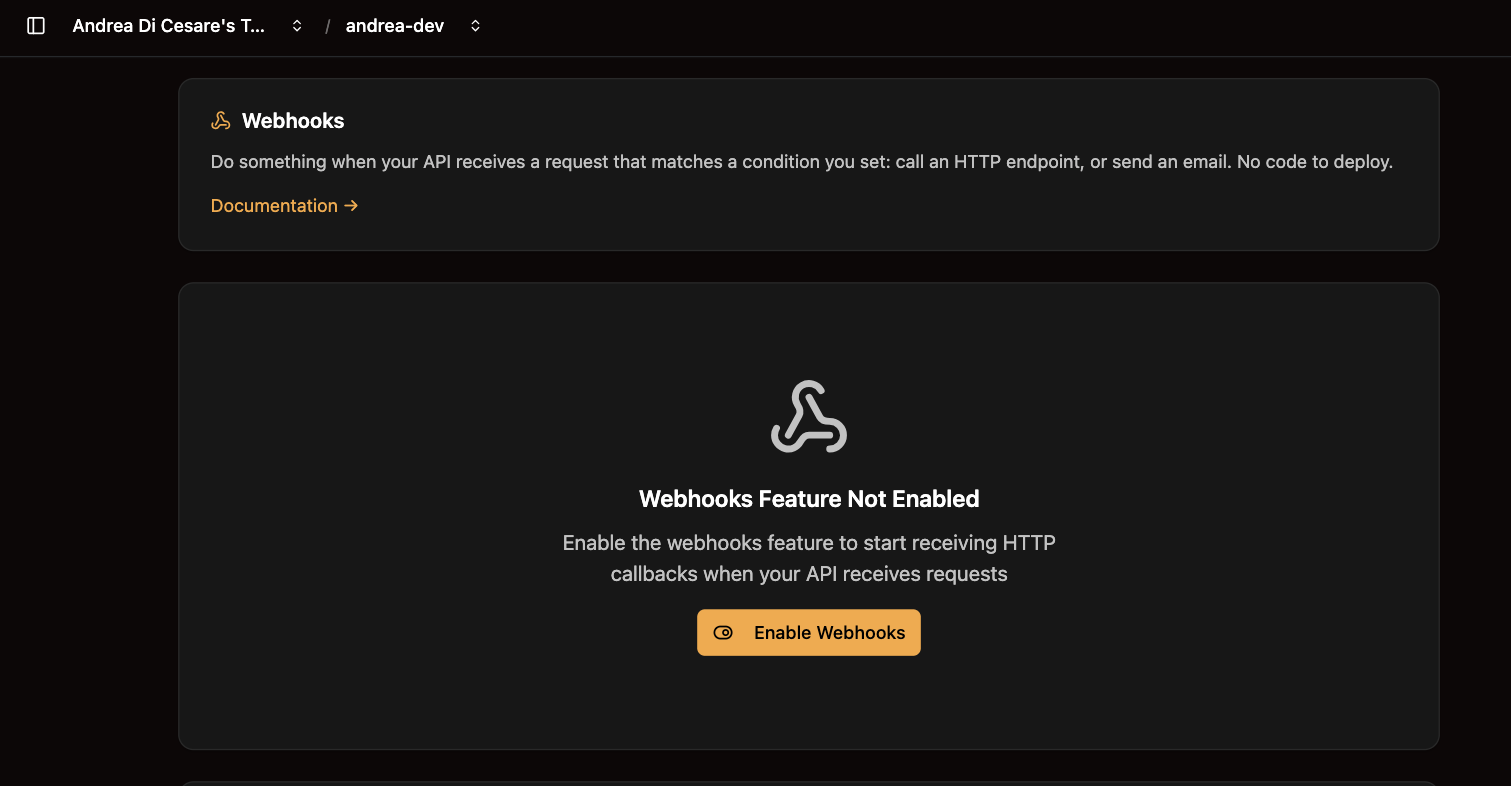
Before you can create webhooks, the feature must be enabled:
-
Navigate to Service → Webhooks.
-
If the feature is not yet active, the page shows an Enable Webhooks button. Click it to activate it.
-
A badge at the top of the page always shows whether the feature is ENABLED or DISABLED.
Two kinds of webhook
HTTP webhooks
Trigger an outbound HTTP POST request to any publicly accessible URL when the condition matches.
| Field | Required | Description |
|---|---|---|
|
Yes |
Human-readable identifier, e.g. "New User Slack Alert". |
|
Yes |
Undertow predicate expression. See Conditions below. |
|
Yes |
Destination URL. Must be publicly accessible. Use |
|
No |
Request timeout in milliseconds. Range: 1000–30000. Default: |
|
No |
JSON object of custom headers sent with the outbound request, e.g. for authentication. |
|
No |
Boolean. When |
|
No |
Mustache template string defining the outbound request body. See Payload Transformation. |
Email webhooks
Send an email via a configured mail provider when the condition matches.
|
Note
|
These count against your service’s daily email allowance, and a webhook with several recipients takes them all or none — five addresses with three left sends nothing. Set up your own mail server and no limit applies. |
| Field | Required | Description |
|---|---|---|
|
Yes |
Human-readable identifier. |
|
Yes |
Undertow predicate expression. |
|
Yes |
Array of recipient email addresses. |
|
No |
Array of CC email addresses. |
|
Yes |
Email subject line. Supports Mustache variables. |
|
Yes |
|
|
Yes |
Template string for the email body. Supports Mustache variables. |
Manage webhooks
The list
The webhook list is fetched and displayed in a paginated, searchable table. Each row shows the webhook name, type, condition, enabled status, and action buttons.
Create one
-
Click New Webhook.
-
Select the type tab: HTTP or Email.
-
Fill in the fields for the chosen type.
-
Click Save.
Edit one
Click Edit on a webhook row to expand the pre-populated accordion form. All fields are editable. Click Save when done.
Switch one off
Each webhook row has an Enable/Disable toggle. Disabling a webhook keeps its configuration intact but prevents it from firing. Useful for temporarily pausing a webhook without deleting it.
Delete one
Click Delete on a webhook row. A confirmation dialog appears before the webhook is permanently removed.
Conditions
The condition field uses the Undertow predicate expression language — the same syntax used in ACL permission rules. A condition is a boolean expression evaluated against the incoming HTTP request and its response.
Paths
path('/users')                        # exact path match
path-prefix('/orders')                # any path starting with /orders
path-template('/users/{id}')          # parameterised path
path-suffix('.csv')                   # path ending with .csv
Methods
method('POST')
method('PUT') or method('PATCH')
Combining them
path('/users') and method('POST')
path-prefix('/orders') and (method('POST') or method('PUT'))
path-template('/users/{id}') and method('DELETE')
not method('GET')
Common conditions
| Goal | Condition |
|---|---|
Fire when a new user is created |
|
Fire on any write to |
|
Fire when a specific resource is deleted |
|
|
Tip
|
Use the Recording feature (see Recording) to capture real request paths before writing your condition — this ensures the predicate matches actual traffic. |
Shape the payload
By default, the outbound HTTP request body contains a standard JSON payload describing the event. Enable transformation when the target service requires a specific format (e.g. Slack blocks, Mailjet’s API schema).
Transformations use Mustache templates with {{variable}} syntax.
Variables
| Variable | Description |
|---|---|
|
Identifier of the Ulabase service. |
|
ISO 8601 timestamp of the event. |
|
HTTP method of the triggering request (e.g. |
|
Path of the triggering request (e.g. |
|
Any field from the request body. Use dot notation for nested fields. |
|
Any header from the incoming request. |
|
HTTP status code of the response. |
|
Any field from the response body. |
|
Any header from the response. |
Example: Slack Block Kit
{
  "text": "New event on {{service.id}}",
  "blocks": [{
    "type": "section",
    "text": {
      "type": "mrkdwn",
      "text": "*{{request.method}}* on `{{request.path}}`\nStatus: {{response.statusCode}}"
    }
  }, {
    "type": "context",
    "elements": [{
      "type": "mrkdwn",
      "text": "{{timestamp}}"
    }]
  }]
}
Example: Mailjet Send API
{
  "Messages": [{
    "From": { "Email": "noreply@yourdomain.com", "Name": "Your App" },
    "To": [{ "Email": "{{request.body.email}}", "Name": "{{request.body.name}}" }],
    "Subject": "Welcome!",
    "HTMLPart": "<h1>Hi {{request.body.name}}!</h1><p>Welcome to our service.</p>"
  }]
}
The UI provides a variable reference panel — click any variable to insert it at the cursor position — and a set of example templates you can load and customise.
Execution logs
Select a webhook and switch to the Logs tab to view its execution history. Each log entry shows:
-
Timestamp
-
Status:
success,failed, orskipped -
Duration in milliseconds
-
Summary of the outbound request and response
Click any entry to expand the full detail view:
| Section | What you see |
|---|---|
Summary |
Overall status and duration. |
Incoming Request |
Method, path, headers, and body of the request that triggered the webhook. |
Condition Evaluation |
Whether the condition matched (and why, if it didn’t). |
Transformation |
Input data and rendered output template (if transformation is enabled). |
Outgoing Request |
The exact HTTP request sent to the target URL. |
Response |
Status code, headers, and body received from the target. |
Use the status filter dropdown to view only successes, failures, or skipped events. Click Refresh to reload the log list. Click Clear Logs to delete old entries (logs are also auto-deleted after 30 days).
Recording
Click Start Recording in the Logs tab to capture all incoming requests for 60 seconds, regardless of whether any condition matches. Use this to:
-
Inspect the exact field names in real request bodies before writing a transformation template.
-
Verify that your condition predicate matches the actual paths and methods used by your clients.
Testing
Click Test Webhook before saving to verify the configuration. The UI sends a sample request to the target URL and shows the response inline. Use https://httpbin.org/post as the target during development — it echoes back the received payload so you can inspect what RESTHeart is sending.
Tutorials
Slack notifications
Send a Slack message whenever a new user registers.
Step 1 — Create a Slack Incoming Webhook
-
Click Create New App → From scratch, name the app, and select your workspace.
-
Navigate to Incoming Webhooks, toggle it ON, and click Add New Webhook to Workspace.
-
Select the target channel and copy the webhook URL.
Step 2 — Configure in Ulabase
Navigate to Service → Webhooks and click New Webhook (HTTP type):
| Field | Value |
|---|---|
Name |
|
URL |
(your Slack webhook URL) |
Condition |
|
Timeout |
|
Transform |
Enabled |
Transformation template:
{
  "text": "New User Registered",
  "blocks": [{
    "type": "header",
    "text": { "type": "plain_text", "text": ":tada: New User Registered" }
  }, {
    "type": "section",
    "fields": [
      { "type": "mrkdwn", "text": "*Name:*\n{{request.body.name}}" },
      { "type": "mrkdwn", "text": "*Email:*\n{{request.body.email}}" }
    ]
  }, {
    "type": "context",
    "elements": [{ "type": "mrkdwn", "text": "Service: {{service.id}} | {{timestamp}}" }]
  }]
}
Click Test Webhook and verify the message appears in Slack.
Step 3 — Test with a Real Request
curl -X POST "https://c0ffee.ulabase.app/users" \
  -H "Authorization: Basic $(echo -n alice:secret | base64)" \
  -H "Content-Type: application/json" \
  -d '{"_id": "jane", "password": "s3cr3t", "roles": ["user"], "name": "Jane Smith", "email": "jane@example.com"}'
More Slack templates
{
  "text": "New Order",
  "blocks": [{
    "type": "section",
    "text": {
      "type": "mrkdwn",
      "text": ":shopping_cart: *Order #{{response.body._id}}*\nCustomer: {{request.body.customerName}}\nTotal: ${{request.body.total}}"
    }
  }]
}{
"text": "API Error",
"blocks": [{
"type": "section",
"text": {
"type": "mrkdwn",
"text": ":warning: *{{response.statusCode}}* on `{{request.method}} {{request.path}}`"
}
}]
}Condition: method('POST') or method('PUT') or method('PATCH')
Email via Mailjet
Send a welcome email when a user registers.
Step 1 — Set Up Mailjet
-
Sign up at https://www.mailjet.com.
-
Go to Account Settings → API Key Management and copy your API Key and Secret Key.
-
Go to Sender Addresses and verify your sending email address.
-
Base64-encode your credentials:
echo -n "YOUR_API_KEY:YOUR_SECRET_KEY" | base64
Step 2 — Configure in Ulabase
| Field | Value |
|---|---|
Name |
|
URL |
|
Condition |
|
Timeout |
|
Headers |
|
Transform |
Enabled |
Transformation template:
{
  "Messages": [{
    "From": { "Email": "noreply@yourdomain.com", "Name": "Your App" },
    "To": [{ "Email": "{{request.body.email}}", "Name": "{{request.body.name}}" }],
    "Subject": "Welcome to Our Service!",
    "TextPart": "Hi {{request.body.name}},\n\nWelcome aboard!\n\nBest regards,\nThe Team",
    "HTMLPart": "<h1>Welcome {{request.body.name}}!</h1><p>We're glad to have you.</p>"
  }]
}
More Mailjet Templates
{
  "Messages": [{
    "From": { "Email": "orders@yourdomain.com", "Name": "Your Store" },
    "To": [{ "Email": "{{request.body.customerEmail}}", "Name": "{{request.body.customerName}}" }],
    "Subject": "Order Confirmation #{{response.body._id}}",
    "HTMLPart": "<h1>Thank you!</h1><p>Order #{{response.body._id}} — Total: ${{request.body.total}}</p>"
  }]
}
Tutorial 3: Email via SendGrid
| Field | Value |
|---|---|
URL |
|
Headers |
|
Transformation template:
{
  "personalizations": [{ "to": [{ "email": "{{request.body.email}}", "name": "{{request.body.name}}" }] }],
  "from": { "email": "noreply@yourdomain.com", "name": "Your App" },
  "subject": "Welcome!",
  "content": [{ "type": "text/html", "value": "<h1>Welcome {{request.body.name}}!</h1>" }]
}
Other Targets
-
Discord — create an Incoming Webhook in channel settings; use a Slack-like blocks payload.
-
Microsoft Teams — create an Incoming Webhook connector; use the MessageCard JSON format.
-
Custom APIs — study the target API documentation, build a matching transformation template, test with
https://httpbin.org/postfirst.
Best Practices
-
Write specific conditions to avoid triggering on every request.
-
Always click Test Webhook before saving.
-
Use the Recording feature to inspect real request structures before writing transformation templates.
-
Set realistic timeouts — 5–10 seconds covers most external APIs.
-
Use HTTPS target URLs only.
-
Send only the fields the target needs; keep transformation templates focused.
-
Review logs regularly to catch failures early.
-
Multiple webhooks can share the same condition — all matching webhooks fire in parallel, and one failure does not affect the others.
Troubleshooting
| Symptom | Action |
|---|---|
Webhook never triggers |
Use Recording to capture actual request paths. Compare them to your condition predicate. |
Status always |
The condition does not match. Check that path, method, and response code align with real traffic. |
Target returns |
Verify the |
Target returns |
Open the log entry and inspect the Transformation section. Ensure the rendered output matches the target API’s expected schema. |
Emails not delivered |
Verify the sender address is verified in Mailjet/SendGrid. Check spam folders. Review the provider dashboard for delivery status. |
Slack rejects payload |
Validate the Block Kit JSON at https://app.slack.com/block-kit-builder. |
Timeout errors |
Increase |
Related pages
-
Managing Permissions (ACL) — the
conditionpredicate language is shared with ACL rules. -
UI Overview — common UI behaviours (search, pagination, error handling).
-
Dedicated vs. Free/Shared Plans — feature availability by tier.