Build
Verification, reset, invitation and order emails sent for you. How many you can send on each tier, and how to send them from your own address.
Your service sends email: address verification, password reset, team invitations, order confirmations.
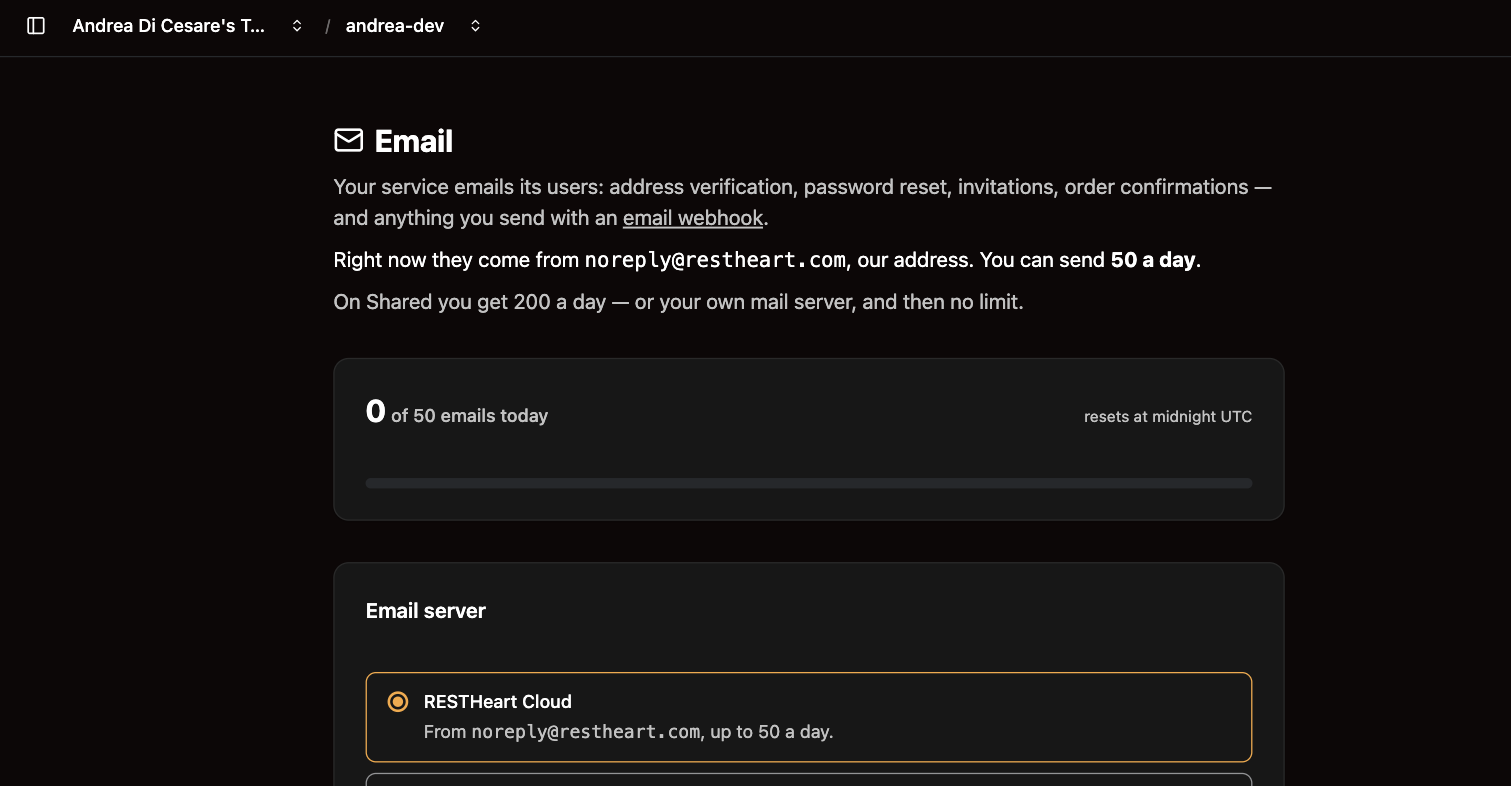
It works out of the box. This page is about the two things you will want to change: how many you can send, and who they come from.
Out of the box
Emails come from noreply@ulabase.com, our address.
There is a daily limit:
| Plan | Emails a day | About |
|---|---|---|
Free |
50 |
1,500 a month |
Shared |
200 |
6,000 a month |
Dedicated |
500 |
15,000 a month |
The count resets at midnight UTC. See how much you have used today in the console, under Email.
Use your own mail server and no limit applies at all — see below.
Send yourself a test
Before anything else, check that email works.
-
Console → your service → Email
-
Click Send test email
It goes to your account address, the same way a real one goes. If it does not arrive, the page shows what the mail server said.
|
Tip
|
The test counts against your daily allowance, because it is a real email. |
Send from your own address
Available on Shared and above.
Your customers see orders@yourshop.com instead of noreply@ulabase.com, and the daily limit stops applying — you are spending your own sending reputation, not ours.
1. Set up DNS first
|
Warning
|
Do this before anything else. A From address on a domain that has not authorised your mail server makes delivery worse: mail that used to arrive starts going to spam. |
You need two DNS records on your domain:
-
SPF — says your mail server may send for your domain
-
DKIM — signs your messages so they cannot be forged
Your mail provider gives you both. Add them, then wait for them to propagate.
2. Fill in the form
Console → your service → Email → Set up my email server.
| Field | Example |
|---|---|
From address |
|
From name |
|
SMTP server |
|
Port |
|
Username |
usually the full address |
Password |
never shown again |
Using Gmail
Gmail works, with one catch: it will not take your account password. You need an app password.
-
Turn on 2-Step Verification on your Google account, if it is not already on. App passwords are not offered without it.
-
Go to myaccount.google.com/apppasswords and create one. Google shows it once — copy it now.
-
Fill the form in with:
| Field | Value |
|---|---|
From address |
your Gmail address |
SMTP server |
|
Port |
|
Username |
your Gmail address, in full |
Password |
the app password, not your Google password |
More detail, if you need it: a guide to Gmail’s SMTP settings.
3. Test it
Click Send test email again. It now goes through your server.
If it fails, the page shows the mail server’s own message:
-
Connection refused— wrong host or port -
Authentication failed— wrong username or password -
Relay access denied— the server will not send for that From address
Do it from the command line
The same settings, as configuration you keep in git, with ulabase:
import { defineSetup, step, fromEnv, isRedacted } from '@ulabase/cli';

const configured = (v: unknown) =>
  isRedacted(v) || (typeof v === 'string' && v.length > 0);

export default defineSetup('Mail', [
  step('mails feature installed', {
    check: ({ admin, srvId }) => admin.isFeatureInstalled(srvId, 'mails'),
    apply: ({ admin, srvId }) => admin.installFeature(srvId, 'mails'),
  }),

  step('sender configured', {
    async check({ admin, srvId }) {
      const c = await admin.getFeatureConfig(srvId, 'mails');
      return c['smtp-hostname'] === 'smtp.yourprovider.com'
          && configured(c['smtp-password']);
    },
    async apply({ admin, srvId }) {
      const current = await admin.getFeatureConfig(srvId, 'mails');
      await admin.updateFeatureConfig(srvId, 'mails', {
        ...current,
        'sender-email': 'orders@yourshop.com',
        'sender-name': 'Your Shop',
        'smtp-hostname': 'smtp.yourprovider.com',
        'smtp-port': 465,
        'smtp-username': 'orders@yourshop.com',
        'smtp-password': configured(current['smtp-password'])
          ? current['smtp-password']
          : fromEnv('SMTP_PASSWORD'),
      });
    },
  }),
]);
Read the stored password back and you get bullets, not the secret. Write those bullets back and the server keeps what it has — which is why the apply above passes current through untouched.
When something goes wrong
No email arrives, and there is no error. Check your daily count in the console. When it runs out, sending stops until midnight UTC.
The port is ignored. Enter it as a number, not text. 587 works; "587" used to be dropped silently on older versions.
Mail goes to spam after switching to your own server. Your SPF and DKIM records are missing or wrong. This is the most common problem, and the only fix is DNS.
A webhook stopped sending. Webhook emails count too, and one webhook can send many at once: it takes the whole set from your allowance or none of it, so a batch of five with three left sends nothing.
Related pages
-
Signup Management — the emails your users get when they register
-
Stripe Billing — order confirmation and refund emails
-
Webhooks — sending email when something happens in your data